Google Play Developer Console: Setup, Fees and Publishing. Do It with Pujo
Start a conversation with Pujo
The Google Play Developer Console, now called Play Console, is the web dashboard where every Android mobile app gets uploaded, reviewed, released and managed on Google Play. You need a developer account in it before anyone can download your mobile app, and that account has a one-time fee, an identity check and, for many new accounts, a testing period. This guide walks through each requirement in order. It also shows how to skip the hard parts: with Pujo, you build your mobile app in conversation and Pujo can publish it for you.
Most mobile apps that launch are never used or shared. The cause is rarely the store account. It is an app that was not made to be passed from one person to the next. We build mobile apps with share features and third-party integrations in from the start, because a good app is like a good meal: it is meant to be shared.

TL;DR
- Play Console is Google’s dashboard for publishing and managing Android mobile apps. Signing up costs a one-time US$25 fee and requires an identity check.
- Personal accounts created after November 13, 2023 must run a closed test with at least 12 testers for 14 days before applying for production access.
- Organization accounts need a D-U-N-S number, which can take up to 30 days to obtain.
- Content rating, the Data safety form and working reviewer login details are needed before review.
- With Pujo, you build your mobile app in ZipPad, tap Publish to app stores, and Pujo guides every store step in the chat.
Table of Contents
- What the Google Play Developer Console does
- Creating your developer account
- What to prepare before you submit
- Testing, review and release rules for new accounts
- Fees and U.S. billing changes
- After launch: updates, crashes and reviews
- Pujo builds and publishes the mobile app for you
- How to use the Google Play Console with Pujo
- How to publish to Google Play with Pujo
- FAQ
- Sources
What the Google Play Developer Console does
Play Console is the back end of Google Play. Android Authority describes it as the place where developers upload new apps, manage existing ones and monitor performance. That includes editing store listings, viewing sales and statistics, managing app versions, answering ratings and reviews, and reading crash reports.
Google’s own overview of Play Console for business adds the growth and quality tools: market insights and acquisition tracking, A/B testing of store listing graphics and text, Android vitals for finding crashes and other problems, and a policy status view that keeps compliance in one place.
In practice you will meet four areas:
| Area | What it is for |
|---|---|
| Store listing | Name, description, screenshots and icon that people see on Google Play |
| Release | Uploading builds, choosing testing or production, rolling out |
| Policy and app content | Content rating, Data safety form, privacy policy, target audience |
| Quality and statistics | Crash reports, Android vitals, installs, ratings and reviews |
Creating your developer account
Google’s setup guide lists the steps. You need an active Google Account and must be at least 18. Then you:
- Sign up for Play Console and accept the Developer Distribution Agreement.
- Pay the US$25 one-time registration fee.
- Choose a personal or organization account.
- Verify your identity.
Google may ask for a valid government ID and a credit card in your legal name. If the information you give is invalid, the fee is not refunded, so enter your legal details exactly as they appear on your documents.
Personal or organization account
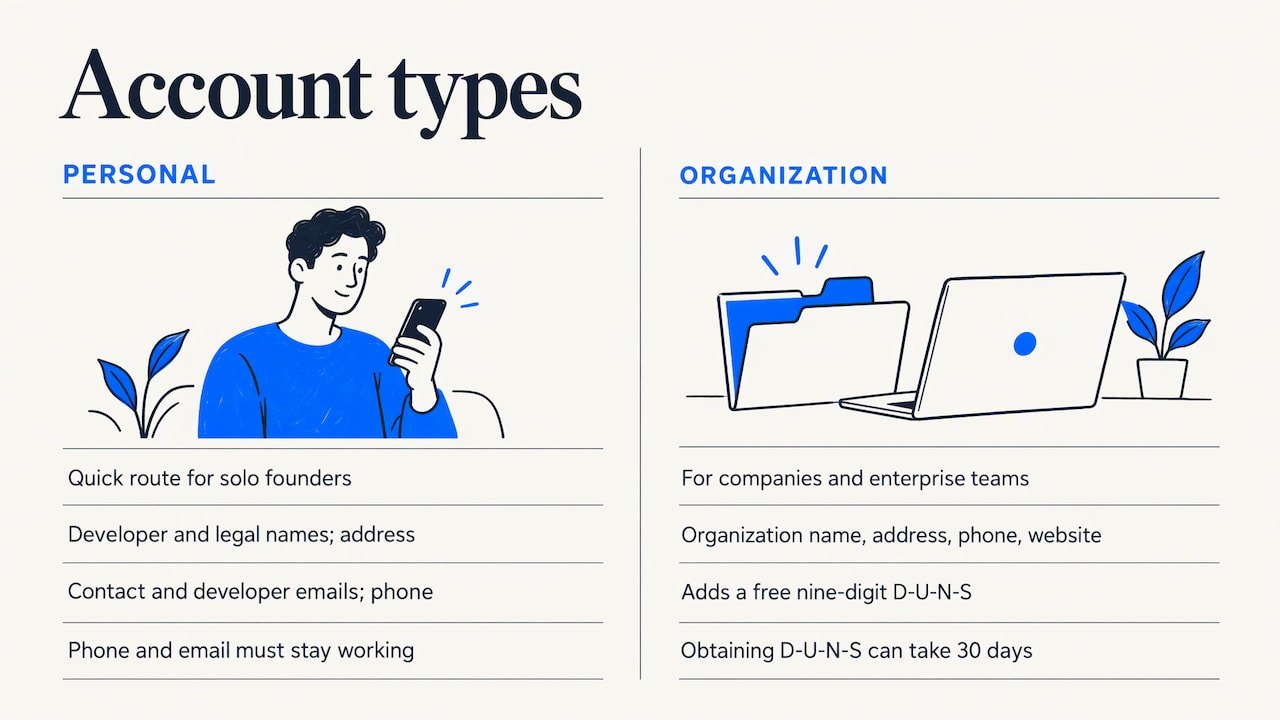
A personal account is the quick route for a solo founder. According to Google’s required-information article, it needs a developer name, legal name, legal address, contact email, contact phone and developer email. These are verified with one-time passwords, and the phone and email must stay working for the life of the account.
An organization account adds a D-U-N-S number, the organization’s name, address, phone and website, and contact details. A D-U-N-S number is a nine-digit business identifier issued by Dun & Bradstreet. Google notes it can take up to 30 days to obtain, at no cost, so start there if you are a company or enterprise team. According to Google’s announcements page, developers offering financial, health, VPN or government services have been required to register as an Organization since July 2024.
Verifying an Android device
Personal account owners have one more step. Under Google’s device verification rules, owners of new personal accounts must confirm access to a physical Android device. You scan a QR code in Play Console and finish verification in the Play Console mobile app. Without this, you cannot make your mobile app available on Google Play.
What to prepare before you submit
Play Console will not let a release through review until the app content sections are complete. Gather these first:
- Store listing assets: app name, short and full description, icon, screenshots and a feature graphic.
- Content rating: you complete a questionnaire. According to an October 2026 review of Google Play policy changes, unrated apps are not allowed on Google Play.
- Data safety form: a disclosure of what user data your mobile app collects and shares.
- Privacy policy: a public web page you link from the listing.
- Reviewer access: if your mobile app has a login, give working test credentials in Play Console so the reviewer can get in.
- Target API level: Google sets a minimum Android version your mobile app must target, and the number moves up on a yearly cycle. Check the current figure in Play Console’s help pages before you upload.
That is a lot of small decisions, and a missing item is the most common reason a first submission stalls.
Testing, review and release rules for new accounts
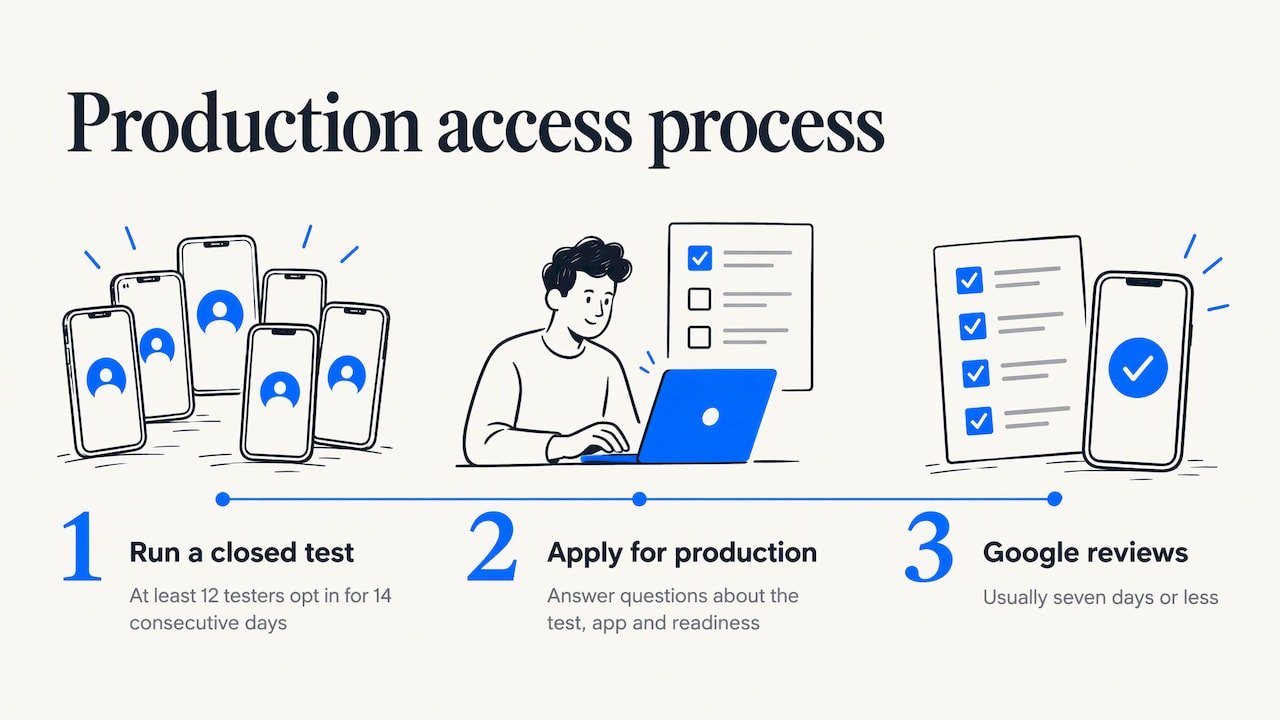
This is where many first-time publishers lose weeks. Google’s testing requirements state that personal developer accounts created after November 13, 2023 must run a closed test with at least 12 testers who stay opted in for at least 14 days continuously. Only then can you apply for production access. You answer questions about the closed test, your mobile app and its production readiness, and Google’s review usually takes seven days or less, though it can take longer.
Google says this process protects users from low-quality apps, malware and fraud. The tester count was 20 until December 2024, when it was lowered to 12, according to Ontesters, which also confirmed the rule was unchanged as of October 19, 2026. Rules shift, so confirm the numbers on Google’s page before you plan a launch date.
Organization accounts are not covered by this personal-account testing rule, which is one more reason some founders register as a company.
Release and rollout
Google’s Publish your app page explains that clicking Release at the end of the release flow also publishes the mobile app, and that updates to existing apps go live as soon as processing finishes. Its production overview recommends staged rollouts, so a last-minute problem reaches fewer users, and pre-launch reports to catch issues before publishing an update.
Fees and U.S. billing changes
The registration fee is US$25, paid once. Google separately announced on December 9, 2025 that alternative billing programs were expanded to eligible developers serving U.S. users, along with an external content links program for U.S. users, with a compliance deadline of January 28, 2026 (Google’s announcements). If your mobile app sells subscriptions or in-app purchases, read the current billing policy in Play Console before you set prices.
After launch: updates, crashes and reviews
Publishing is the start. Google’s own Secrets to App Success guide recommends releasing updates to a subset of users first, watching crash reports and feedback, and fixing or rolling back before widening the release. In Play Console, Android vitals shows the crashes and slowdowns affecting users on specific devices and Android versions.
The bigger risk is not a crash. It is a mobile app that nobody opens twice and nobody shares. Growth is the work we take off your hands: Pujo builds viral mobile apps, made to drive engagement, with share features and third-party integrations built in, and Pujo handles growth for you rather than handing you a to-do list.
Pujo builds and publishes the mobile app for you
If you are a founder, marketer, designer or enterprise team and you want a native iOS and Android mobile app in the stores without writing code, Pujo is built for that. You build the mobile app in a conversation, and Pujo launches it to the App Store and Google Play. If you already have a Figma design, Pujo can turn it into a published mobile app with no code. Our mobile apps are native, not web pages in a wrapper.
Pujo runs on prepaid credits sold in packs, called Starter and Pro. You can see the options on the Pujo credit packs page, or start at pujo.ai. If you want the longer Android walkthrough, see our guide to publishing an Android app on Google Play, and for Apple, the one on publishing an iPhone app.
How to use the Google Play Console with Pujo
You do not have to learn the console’s menus before you have a mobile app worth publishing. The place where people build with Pujo is ZipPad.
- Open ZipPad and message Pujo. Tell Pujo what business or idea the mobile app is for, in your own words, as you would to a colleague.
- Answer Pujo’s questions. It asks what it needs: who the mobile app is for, what it should do, how people will share it.
- Watch the mobile app take shape. ZipPad shows your mobile app in a phone preview, so you see screens and flows before anything goes to a store.
- Ask for changes in the chat. Adjust colors, screens or sharing features until the preview matches your plan.
- Move to publishing when you are ready. The next section covers that step.
You keep the decisions: the name, the look, the purpose. Pujo takes on the building, and the store paperwork is guided in the same chat.
How to publish to Google Play with Pujo
Publishing by hand means a developer account, an identity check, a closed test, a content rating and a Data safety form. With Pujo, the path is shorter, and the same chat you built in guides you through it.
- Message Pujo in ZipPad. Open ZipPad, the place where you build with Pujo, and send your message to start or continue your mobile app.
- Answer Pujo’s questions. Pujo asks about your mobile app and what the store needs to know, such as its name and who it is for. Plain answers are enough.
- Check the phone preview. In ZipPad’s phone preview, look at your mobile app the way a customer would see it. Request edits in the chat until it is right.
- Tap Publish to app stores. When the preview is ready, tap this button in ZipPad.
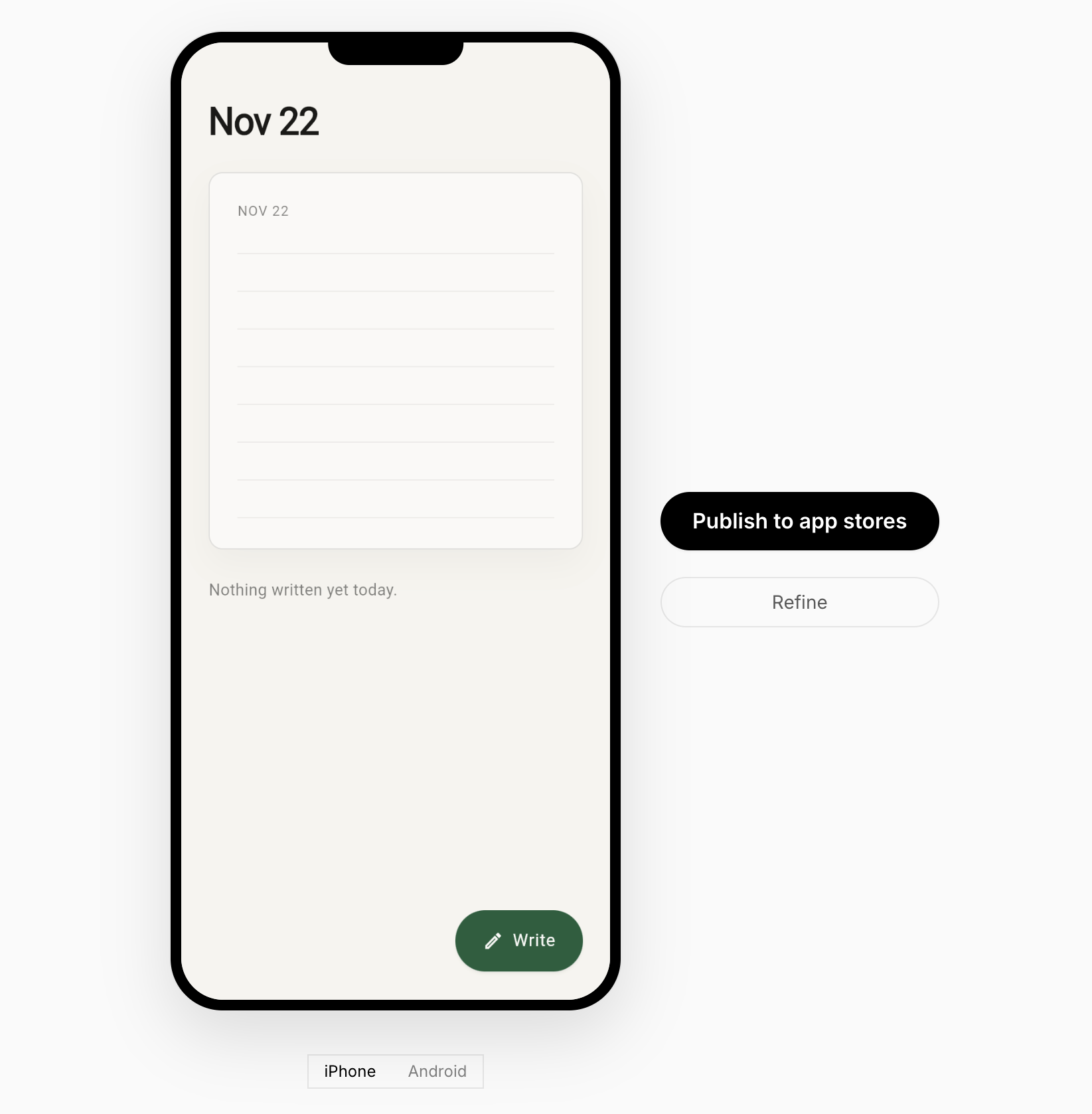
- Follow Pujo through each Google Play step. Pujo guides every store step in the chat, including the developer account details Google asks for, such as your legal name and the US$25 one-time registration fee. Pujo can publish for you, so you are never left alone in an unfamiliar dashboard.
- Confirm the details only you can give. Your identity and payment details are yours to enter. Google may ask for a government ID and a card in your legal name, and the device verification and testing rules above apply to personal accounts.
- Release. When the steps are done, your mobile app goes through Google’s review, which usually takes seven days or less.
Want it on iPhones too? Pujo builds native iOS and Android mobile apps, and the same chat guides the App Store steps.
FAQ
Is the Google Play Developer Console the same as Google Play Console?
Yes. People still search for the old name, but the dashboard is now called Google Play Console. It is where you publish, manage and monitor Android mobile apps on Google Play.
How much does a Google Play developer account cost?
Google charges a one-time registration fee of US$25. It is not refunded if the identity or payment information you provide is invalid, so use your legal details.
How long does it take to get a mobile app live on Google Play?
For a new personal account, plan on at least 14 days because of the closed test with 12 testers, plus a review that usually takes seven days or less. Organization accounts may need up to 30 days to obtain a D-U-N-S number first.
Do I need to know how to code to publish on Google Play?
No. Pujo builds your mobile app from a conversation in ZipPad and guides each store step in the chat, so you can publish without writing code.
Sources
- An introduction to the Google Play Console for Android developers, Android Authority
- Get started with Play Console, Play Console Help
- Required information to create a Play Console developer account, Play Console Help
- Device verification requirements for new developer accounts, Play Console Help
- App testing requirements for new personal developer accounts, Play Console Help
- Publish your app, Play Console Help
- Announcements, Play Console Help
- Google Play policy updates in 2026, Ontesters
- The Secrets to App Success on Google Play, Google
- Google Play for business
- Google Play production overview
Recommended
Have an idea for an app? Describe it, and Pujo builds it for iPhone and Android.
Start a conversation with Pujo