Google Play Console Login: Sign In, Fix Errors, Publish. Do It with Pujo
Start a conversation with Pujo
To log in to Google Play Console, go to play.google.com/console and sign in with the Google Account that created your developer account. That is the account owner, and it is the one that paid the registration fee. Most login trouble comes from using a different Google Account. If you have not registered yet, you need an account first, and then you need a mobile app to put in it. Pujo builds the native iOS and Android mobile app and can publish it for you, so the console is a place you visit to finish the job rather than a project of its own.
Many new mobile apps launch and are never used or shared. The listing goes live, nobody finds it, and nothing in the app gives anyone a reason to pass it on. A good app is like a good meal: it is meant to be shared. That is why we build mobile apps with share features and third-party integrations built in.

TL;DR
- Sign in at play.google.com/console with the exact Google Account that created the developer account, the account owner.
- Registering costs a US$25 one-time fee. You must be 18 or older and complete identity verification.
- Wrong-account sign-ins are a common cause of login problems. If the console asks you to create a new developer account, stop and switch accounts.
- Add teammates as users with their own emails. Do not share the owner password.
- With Pujo you can build your mobile app in ZipPad and have Pujo guide you through publishing to Google Play.
Table of Contents
- How to log in to Google Play Console
- Common login problems and how to fix them
- Create a developer account if you have not registered
- Protect the account and add your team
- What happens after you log in
- Build the mobile app that gets used, not just listed
- How to log in to Google Play Console with Pujo
- How to publish to Google Play with Pujo
- FAQ
- Sources
How to log in to Google Play Console
Play Console is Google’s web dashboard for managing Android apps on Google Play. You use it to upload your app, fill in the store listing, track releases and read reviews. Logging in takes a minute when you use the right account.
- Open play.google.com/console in your browser.
- Sign in with the Google Account you used to create the developer account. Google’s own instructions tell you to log in to Play Console on the web as the account owner.
- If you use several Google Accounts, try a private window so the browser does not pick the wrong one. A Play Console login guide suggests the same approach and says to stop if you are offered the chance to create a new developer account, since that means you are signed in with an account that has no console.
- Finish 2-Step Verification if it is turned on.
If you work with a developer or agency, you may have been invited to someone else’s console. In that case you sign in with your own email, and the owner decides what you can see.
Common login problems and how to fix them
You are signed in but see no developer account
You are almost certainly using a different Google Account from the one that registered. Sign out, then sign in with the owner account. Check old emails for the Google Play receipt for the registration fee. It shows which account paid.
You forgot your password or email
Google points you to the Google Account Recovery page if you cannot sign in. For a forgotten email address, the recovery flow asks for a recovery email or phone number and your name, then sends a verification code. Android Police walks through the steps. Expect to prove ownership. There is no support line that skips the process, and if Google locks sign-in after repeated failures, waiting 24 hours before retrying is the usual advice.
Your payment was declined at registration
Google says you may need to update your payments profile with a different payment method or billing address. If more than 48 hours have passed since you registered and the payment has not gone through, contact Google’s support team.
You are locked out because of 2-Step Verification
Google recommends turning on 2-Step Verification for every account with Play Console access. Keep backup codes somewhere offline, so a lost phone does not lock you out of the console.
Create a developer account if you have not registered
You need a Google Account and must be at least 18. Then, per Google’s getting started guide:
- Open the Play Console sign-up page and accept the Developer Distribution Agreement.
- Pay the US$25 one-time registration fee. In the US, Google accepts Mastercard, Visa, American Express and Discover. Prepaid cards are not accepted.
- Choose personal or organization.
- Complete identity verification.
Google may ask for a valid government ID and a credit card, both in your legal name. The fee is not refunded if that information turns out to be invalid.
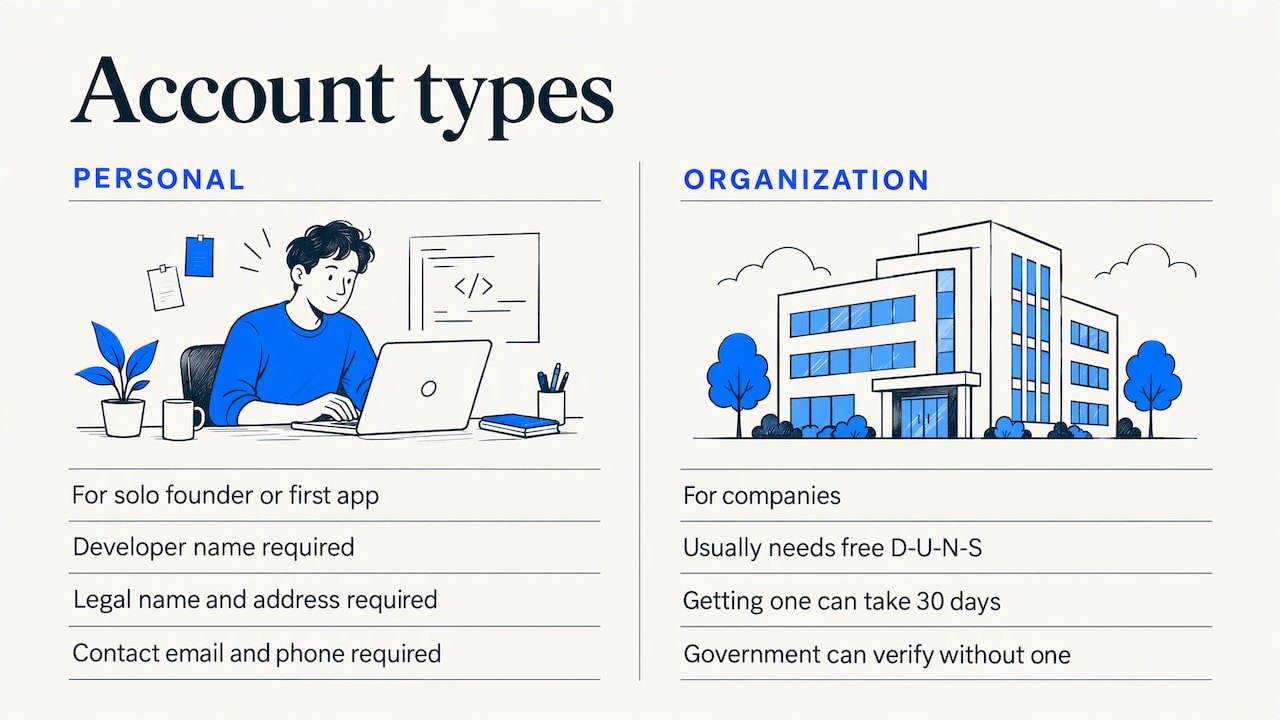
Personal or organization account
A personal account suits a solo founder or a first mobile app. An organization account suits a company. Organization accounts generally need a free D-U-N-S number, a business identifier, and getting one can take up to 30 days. Start that early if your launch has a date. Government organizations can verify without one.
For personal accounts, Google lists these required details: developer name, legal name, legal address, contact email, contact phone and developer email. The contact email, phone and developer email must each be verified with a one-time password and stay working for the life of the account.
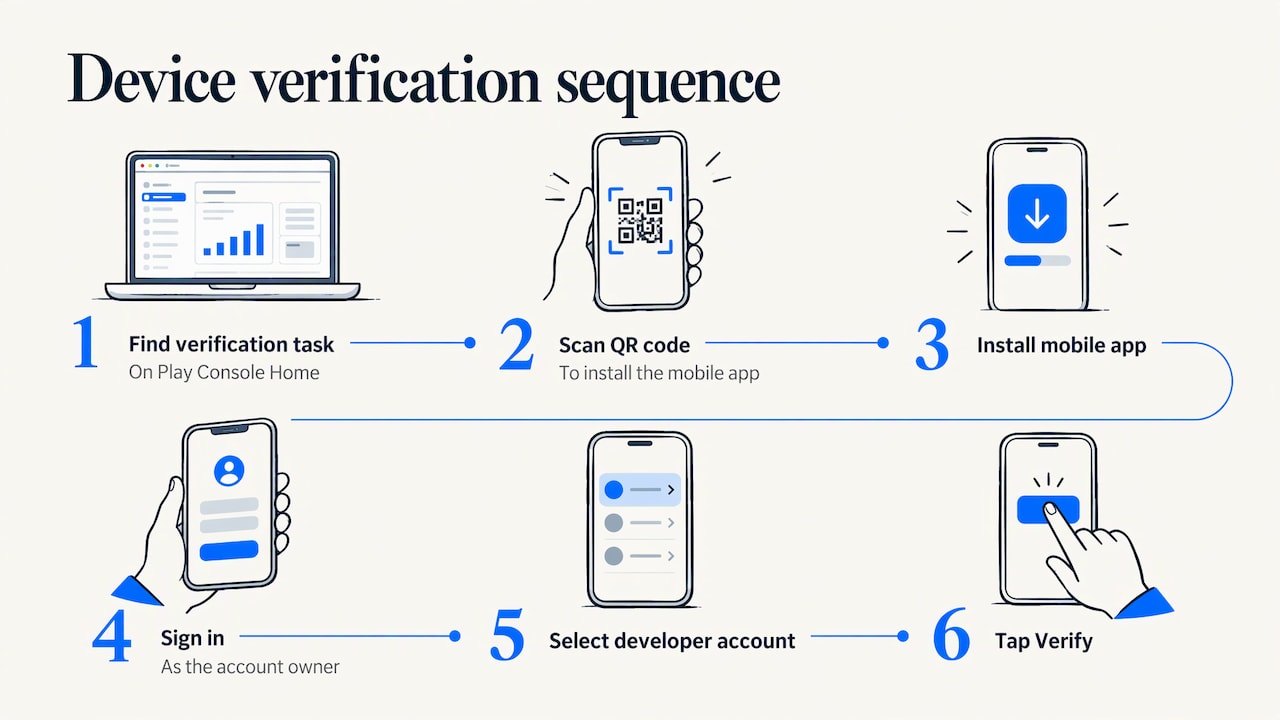
Device verification for new personal accounts
Since early 2024, new personal accounts must verify access to a real Android device through the Play Console mobile app before the app can go live. On the console Home page, find the device verification task, scan the QR code to install the Play Console mobile app, log in as the account owner, pick the developer account and tap Verify.
Testing rule for personal accounts
Personal accounts created after November 13, 2023 face a testing requirement before production. One publishing guide describes it as at least 12 testers opted in for 14 consecutive days on a closed testing track. Google’s own help notes that the testing requirements do not apply to personal accounts created before that date. Check the current rules in Play Console before you plan your launch date.
Protect the account and add your team
Your console holds your whole Android presence, so treat the login like a company asset. Google’s account protection guidance recommends:
- Adding other people as users, so each teammate signs in with their own email, instead of sharing the owner password.
- Reviewing users regularly and removing anyone who no longer needs access.
- Using a dedicated Google Account for the developer account, not your personal one, since sharing a password also exposes linked Gmail and Google payments data.
For a marketing team or enterprise, this also keeps launches moving. The owner invites the people who need access, and nobody waits on a shared password.
What happens after you log in
Signing in gets you an empty dashboard. The real work is the mobile app itself, the store listing and a release. Google Play uses Android App Bundles, so you build, sign and upload a single bundle that covers all device configurations. For a non-developer this is the point where a launch stalls. Our guide on publishing an Android app on Google Play covers the whole path, and if you also want an iPhone version, see publishing an iPhone app.
Build the mobile app that gets used, not just listed
Pujo is where a business starts: its own native iOS and Android mobile app, built through a conversation and launched to the app stores. Pujo builds mobile apps made to be shared, with share features and third-party integrations built in, so the app has a reason to spread after launch. Growth work is something Pujo does for you, so you are not left with a to-do list after the listing goes live. Designers with a Figma mobile app design can have it built and published with no code.
Mobile app building runs on prepaid credits sold in packs, with Starter and Pro available. See the options on the Pujo buy page, or start from Pujo’s home page.
How to log in to Google Play Console with Pujo
You build with Pujo in ZipPad. Here is the short version of how the console login fits in:
- Open ZipPad and message Pujo about the mobile app you want. Answer its questions.
- Watch the mobile app take shape in ZipPad’s phone preview.
- Make sure you have the Google Account that will own your developer account. Use the owner account for every Play Console sign-in.
- Tap Publish to app stores. Pujo guides each store step in the chat, including the sign-in.
How to publish to Google Play with Pujo
Pujo can publish for you. You do not need to learn the console first. This is the route, step by step.
Step 1: Open ZipPad and message Pujo
ZipPad is where you build with Pujo. Start a chat and tell Pujo what the business needs. Pujo asks questions, and you answer them in plain words, the way you would brief a colleague.
Step 2: See your mobile app in the phone preview
As you answer, the mobile app appears in ZipPad’s phone preview. Tap through it, then ask Pujo for changes in the chat until it looks right.
Step 3: Tap Publish to app stores
When you are happy, tap Publish to app stores in ZipPad. Choose Google Play.
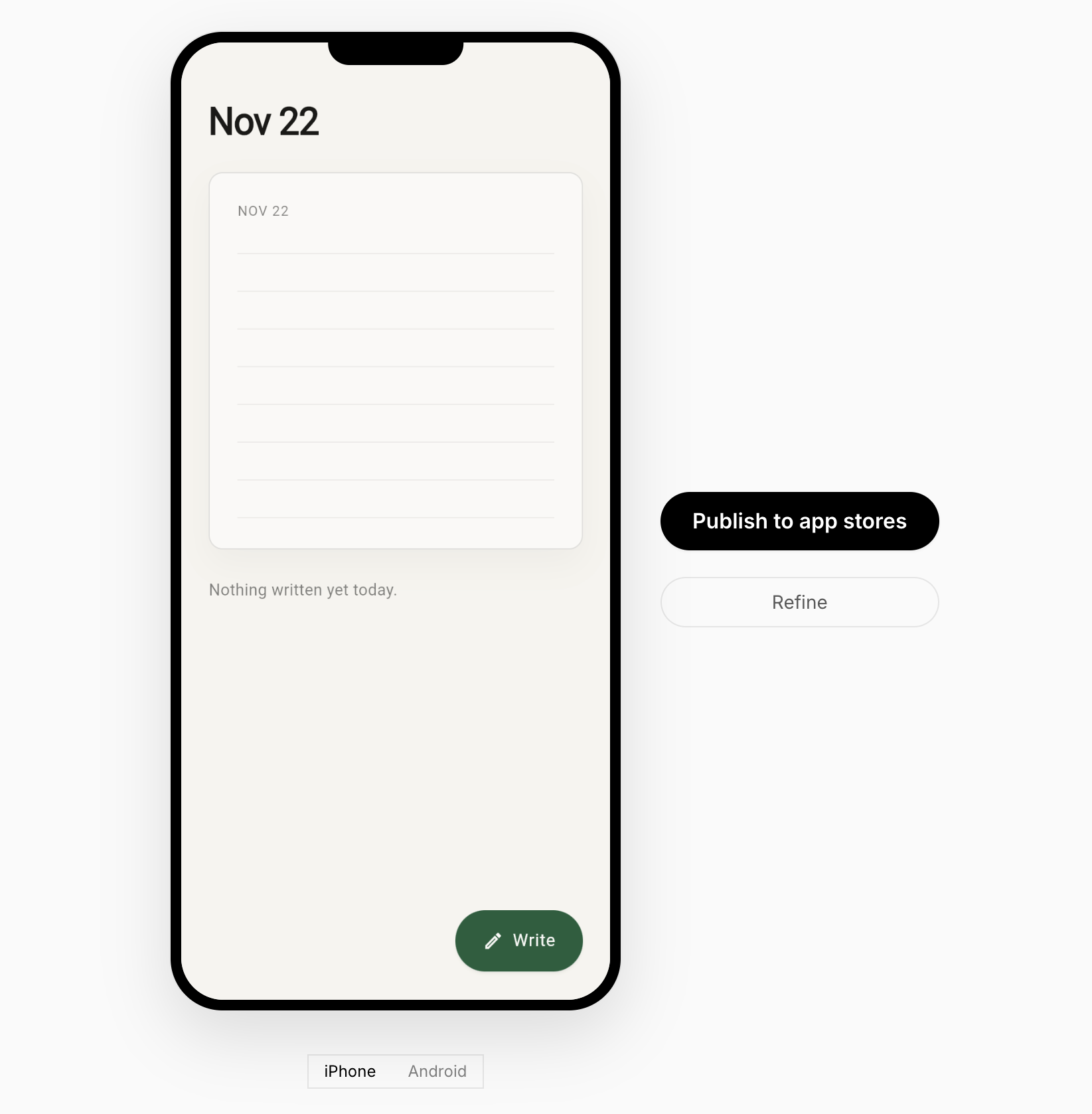
Step 4: Follow Pujo through each store step
Pujo guides each store step in the chat. That includes signing in to your developer account with the owner Google Account, so keep it at hand. Answer what Pujo asks, and it takes you through to the end.
FAQ
Which Google Account should I use for Play Console?
Use the account that created the developer account and paid the registration fee. Google’s instructions refer to this as the account owner. If the console offers to create a new developer account, you are signed in with the wrong one.
How much does a Play Console account cost in the US?
Google charges a one-time registration fee of US$25. There is no yearly renewal listed on that page. Prepaid cards are not accepted.
Can my team log in without sharing my password?
Yes. Google recommends adding teammates as users so each signs in with their own email, and removing people who no longer need access.
What if I cannot get back into my account?
Start with the Google Account Recovery page. Recovery depends on Google confirming that you own the account, and it can take several business days. Turn on 2-Step Verification and store backup codes once you are back in.
Sources
- Get started with Play Console - Play Console Help
- Device verification requirements for new developer accounts
- Required information to create a Play Console developer account
- Protect your developer account - Play Console Help
- Account, registration, and payment issues - Play Console Help
- Create and set up your app - Play Console Help
- How to recover your Google account
- Google Play Console Login Issues: Fixes That Work (2026)
- Fix Google Developer Login Issues: Step-by-Step (2026)
- How to Publish a Flutter App on Google Play (2026 Guide)
Recommended
Have an idea for an app? Describe it, and Pujo builds it for iPhone and Android.
Start a conversation with Pujo